> ## Documentation Index
> Fetch the complete documentation index at: https://developer.fabric.inc/llms.txt
> Use this file to discover all available pages before exploring further.
# Sampled Enrichment
> Review and refine AI-generated product content before applying enrichment across your catalog.
Product Agent is currently in beta, and we're [seeking partners](https://fabric.inc/contact-us) to help shape its future.
**Sampled Enrichment** allows you to review and refine AI-generated product data before applying it to your catalog.
In this step, Product Agent displays the attributes, FAQs, image alt text, and metadata for the product scope you selected in the previous step. You can review the changes Product Agent made, see its rationale, make edits, and provide guidance to improve future enrichment results.
## Page Layout
The Sampled Enrichment screen is divided into two main areas:
* Product list (left panel): Displays all products included in enrichment. You can filter by category and select individual products to review.
* Product detail (main panel): Displays the enriched data for the selected product.
Selecting a product from the left panel displays that product’s enriched data in the main panel.
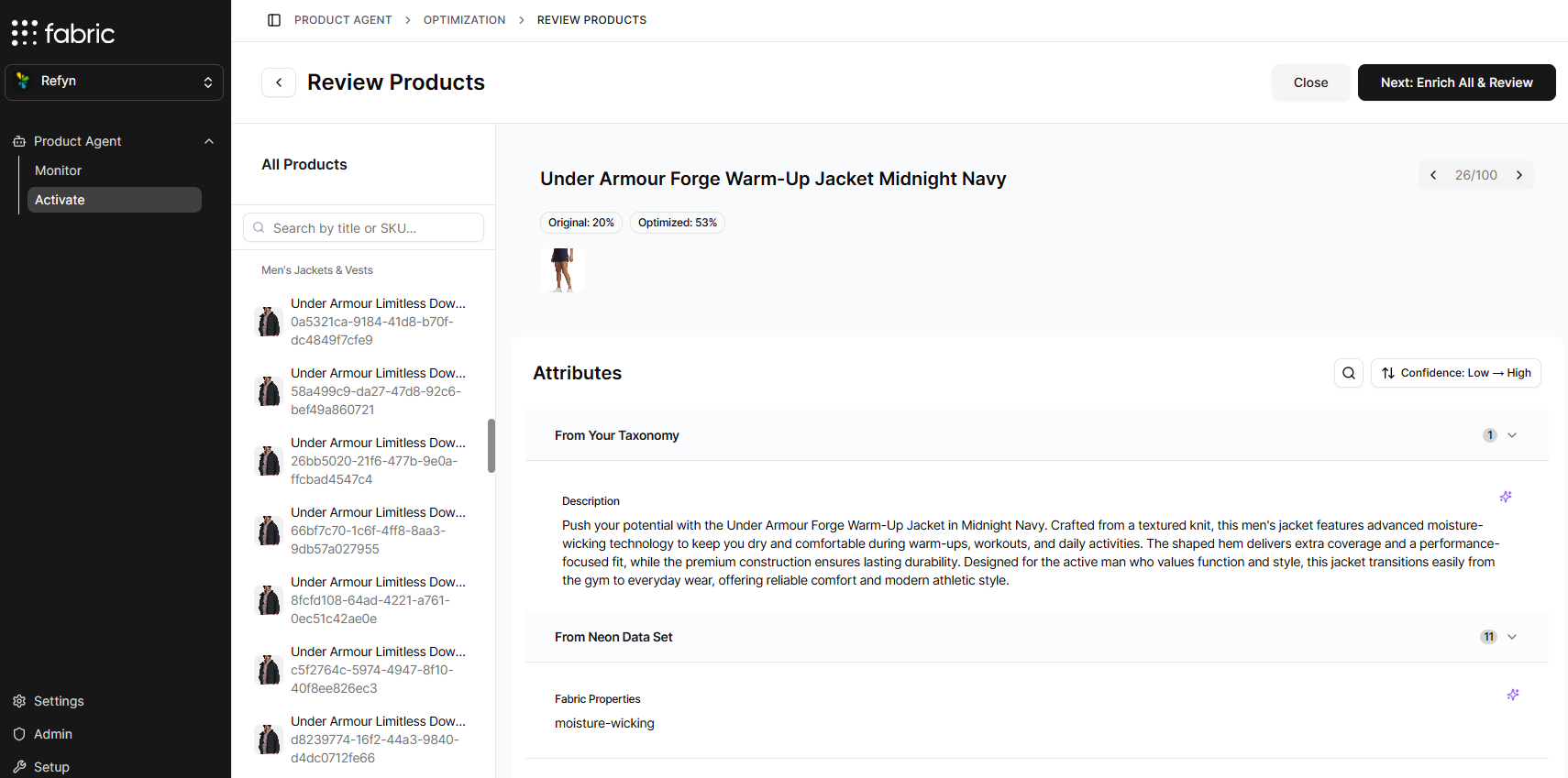 Each product includes the following sections detailing its data:
| **Section** | **Description** |
| :----------------- | :---------------------------------------------------------------------------------------------------------- |
| **Attributes** | The product description and details such as size, color, material, or instructions. |
| **FAQs** | Questions and answers designed to improve product discovery and support search-based experiences. |
| **Image alt tags** | Descriptions for product images to improve accessibility and image search visibility. |
| **Meta data** | SEO-focused fields such as meta title and meta description to improve search engine visibility and ranking. |
### Attribute sources
Attributes are grouped into two sections to help you understand where each value comes from:
* **From Your Taxonomy**: These attributes come from your existing product data. Product Agent may standardize or enhance these values to improve consistency and clarity.
* **From Neon Data Set**: These are attributes that Product Agent identifid as opportunities based on fabric’s data model and industry benchmarks. They represent important product details that may be missing from your current data but can improve discoverability, filtering, and AI readiness.
### Enrichment status
Each piece of product data includes a status indicator to show how it was handled during enrichment:
* **New**: Newly generated by Product Agent
* **Updated**: Modified from the source data
* **Original**: Unchanged from the source data
These statuses help you quickly identify which content was created, enhanced, or left as-is.
### Enrichment insights
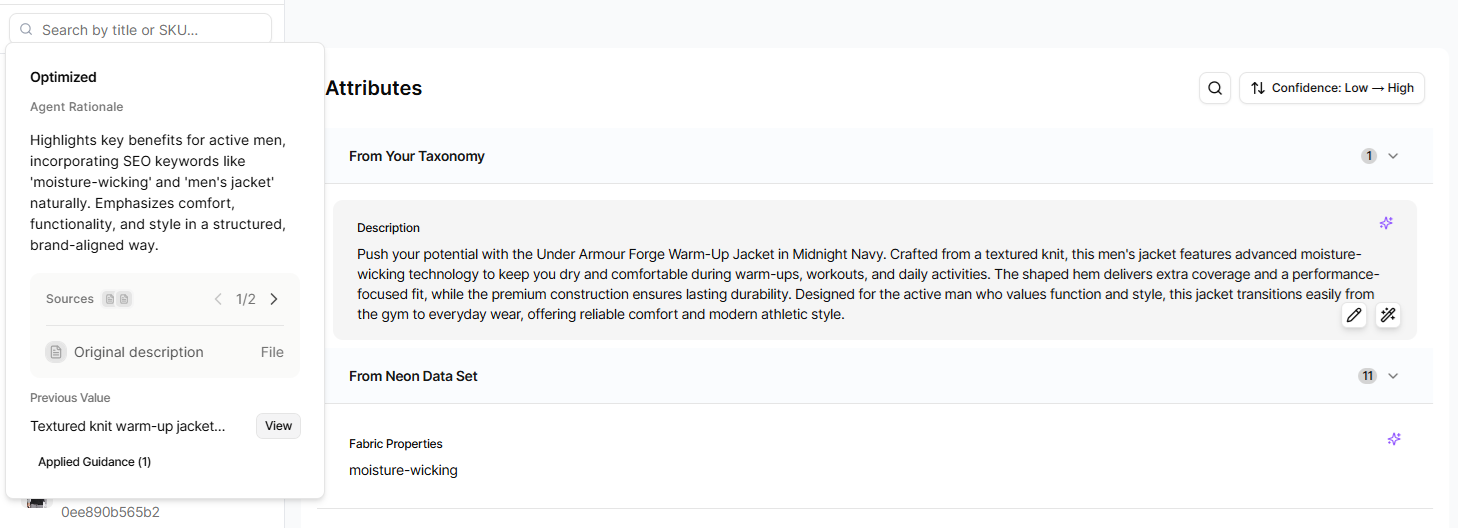
Hovering over a piece of product data displays additional context, including:
* Agent rationale explaining why a value was generated, updated, or left unchanged
* Sources used to derive the value
* Attribute origin (for example, supplier data or AI-generated content)
This information helps you understand how Product Agent determined each value.
Hovering over attributes that Product Agent enhanced from your taxonomy gives you the **Revert** button so that you can undo the enrichment.
Each product includes the following sections detailing its data:
| **Section** | **Description** |
| :----------------- | :---------------------------------------------------------------------------------------------------------- |
| **Attributes** | The product description and details such as size, color, material, or instructions. |
| **FAQs** | Questions and answers designed to improve product discovery and support search-based experiences. |
| **Image alt tags** | Descriptions for product images to improve accessibility and image search visibility. |
| **Meta data** | SEO-focused fields such as meta title and meta description to improve search engine visibility and ranking. |
### Attribute sources
Attributes are grouped into two sections to help you understand where each value comes from:
* **From Your Taxonomy**: These attributes come from your existing product data. Product Agent may standardize or enhance these values to improve consistency and clarity.
* **From Neon Data Set**: These are attributes that Product Agent identifid as opportunities based on fabric’s data model and industry benchmarks. They represent important product details that may be missing from your current data but can improve discoverability, filtering, and AI readiness.
### Enrichment status
Each piece of product data includes a status indicator to show how it was handled during enrichment:
* **New**: Newly generated by Product Agent
* **Updated**: Modified from the source data
* **Original**: Unchanged from the source data
These statuses help you quickly identify which content was created, enhanced, or left as-is.
### Enrichment insights
Hovering over a piece of product data displays additional context, including:
* Agent rationale explaining why a value was generated, updated, or left unchanged
* Sources used to derive the value
* Attribute origin (for example, supplier data or AI-generated content)
This information helps you understand how Product Agent determined each value.
Hovering over attributes that Product Agent enhanced from your taxonomy gives you the **Revert** button so that you can undo the enrichment.
 ## Procedure
1. Navigate through the sampled enrichment of your catalog and review Product Agent’s optimizations.
2. (Optional) To make changes to Product Agent's optimizations or the guidance that Product Agent uses when enriching your content, see [Optional Procedures](/product-agent/activate/sampled-enrichment#optional-procedures) below.
3. Click **Next: Enrich All & Review**.
You are directed to the next step in the process, [Enrich All & Review](/product-agent/activate/enrich-all-review).
## Optional Procedures
The following procedures explain how to adjust optimizations in Sampled Enrichment, whether by editing a single product or providing guidance for future enrichments.
Your edits and feedback help Product Agent learn your preferences and generate better results.
### Regenerating AI content
The product description, attributes, FAQs, and meta data all support AI edits at the individual level. This allows you to use the Product Agent AI to regenerate content without manual edits or rewrites.
1. Mouse over a piece of product data and click the magic wand icon.
The guidance window is displayed.
2. In the text field, give the AI guidance on what you would like changed.
3. Click **Generate**.
Product Agent regenerates the data.
You can regenerate data as needed.
### Editing a product's title
1. To change a product's title, mouse over the title and click the pencil icon.
The **Edit Title** window is displayed.
2. In the **Title** field, enter the new title.
3. In the **Provide edit guidance** field, provide a reason for the edit.
4. In the **Scope** field, choose whether the edit applies to:
* Only this product
* Every product with this attribute
5. Click **Save**.
The new product title and guidance are saved.
### Editing an attribute
1. Mouse over the attribute and click the pencil icon.
The edit menu is displayed.
## Procedure
1. Navigate through the sampled enrichment of your catalog and review Product Agent’s optimizations.
2. (Optional) To make changes to Product Agent's optimizations or the guidance that Product Agent uses when enriching your content, see [Optional Procedures](/product-agent/activate/sampled-enrichment#optional-procedures) below.
3. Click **Next: Enrich All & Review**.
You are directed to the next step in the process, [Enrich All & Review](/product-agent/activate/enrich-all-review).
## Optional Procedures
The following procedures explain how to adjust optimizations in Sampled Enrichment, whether by editing a single product or providing guidance for future enrichments.
Your edits and feedback help Product Agent learn your preferences and generate better results.
### Regenerating AI content
The product description, attributes, FAQs, and meta data all support AI edits at the individual level. This allows you to use the Product Agent AI to regenerate content without manual edits or rewrites.
1. Mouse over a piece of product data and click the magic wand icon.
The guidance window is displayed.
2. In the text field, give the AI guidance on what you would like changed.
3. Click **Generate**.
Product Agent regenerates the data.
You can regenerate data as needed.
### Editing a product's title
1. To change a product's title, mouse over the title and click the pencil icon.
The **Edit Title** window is displayed.
2. In the **Title** field, enter the new title.
3. In the **Provide edit guidance** field, provide a reason for the edit.
4. In the **Scope** field, choose whether the edit applies to:
* Only this product
* Every product with this attribute
5. Click **Save**.
The new product title and guidance are saved.
### Editing an attribute
1. Mouse over the attribute and click the pencil icon.
The edit menu is displayed.
 2. Edit the attribute as required.
3. In the **Scope** field, choose whether the edit applies to:
* Only this product
* Every product with this attribute
4. In the **Guidance for the agent...** field, provide a reason for the edit.
5. Click **Save**.
The edits and guidance are saved.
### Editing an FAQ
1. Mouse over the FAQ and click the pencil icon.
The edit menu is displayed.
2. Edit the attribute as required.
3. In the **Scope** field, choose whether the edit applies to:
* Only this product
* Every product with this attribute
4. In the **Guidance for the agent...** field, provide a reason for the edit.
5. Click **Save**.
The edits and guidance are saved.
### Editing an FAQ
1. Mouse over the FAQ and click the pencil icon.
The edit menu is displayed.
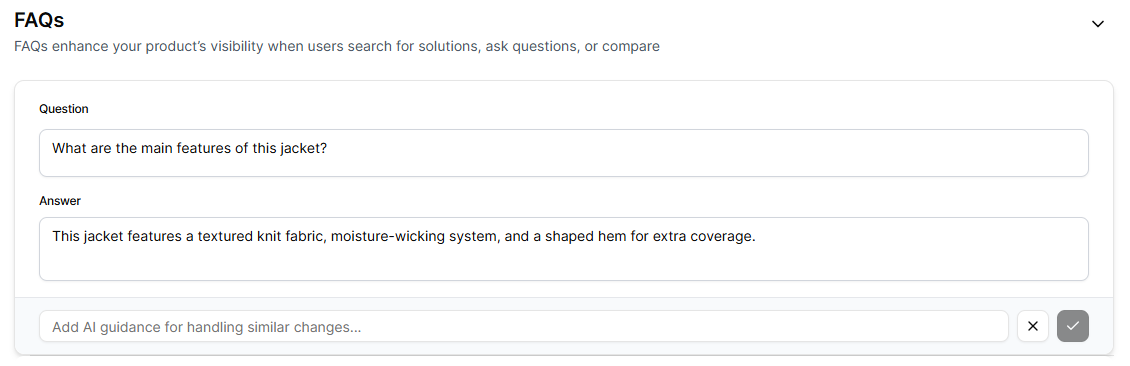 2. In the **Question** field, edit the question.
3. In the **Answer** field, edit the answer.
4. In the **Add AI guidance for handling similar changes...** field, provide a reason for the edit.
5. Click the checkmark icon.
The edits and guidance are saved.
### Editing image alt tags
1. Mouse over an alt tag and click the pencil icon.
The **Edit Alt Text** window is displayed.
2. In the **Question** field, edit the question.
3. In the **Answer** field, edit the answer.
4. In the **Add AI guidance for handling similar changes...** field, provide a reason for the edit.
5. Click the checkmark icon.
The edits and guidance are saved.
### Editing image alt tags
1. Mouse over an alt tag and click the pencil icon.
The **Edit Alt Text** window is displayed.
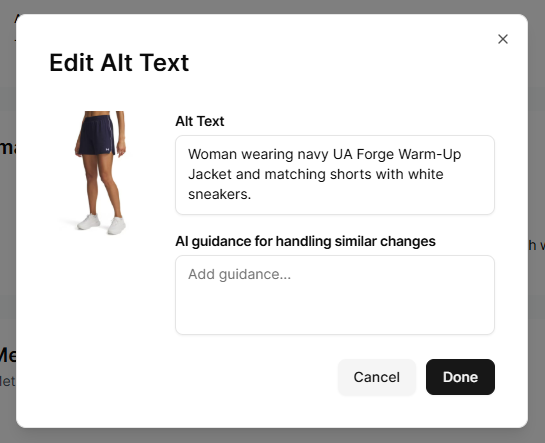 2. In the **Alt Text** field, edit the alt tag as required.
3. In the **AI guidance for handling similar changes** field, provide a reason for the edit.
4. Click **Done**.
The edits and guidance are saved.
### Editing meta data
1. Mouse over the meta data and click the pencil icon.
The edit menu is displayed.
2. Edit the attribute as required.
3. In the **Meta Title** field, edit the meta data.
4. In the **Guidance for the agent...** field, provide a reason for the edit.
5. Click the checkmark icon.
The edits and guidance are saved.
## Related Topics
* [Activate Overview](/product-agent/activate/overview)
* [Product Activation](/product-agent/activate/activating-products/introduction)
* [Experiments](/product-agent/activate/activating-products/experiments)
* [Importing Products](/product-agent/activate/activating-products/importing-products)
* [Taxonomy Mapping](/product-agent/activate/taxonomy-mapping)
* [Enriching Products](/product-agent/activate/enriching-products)
* [Enrich All & Review](/product-agent/activate/enrich-all-review)
* [Publishing Products](/product-agent/activate/publishing-products)
2. In the **Alt Text** field, edit the alt tag as required.
3. In the **AI guidance for handling similar changes** field, provide a reason for the edit.
4. Click **Done**.
The edits and guidance are saved.
### Editing meta data
1. Mouse over the meta data and click the pencil icon.
The edit menu is displayed.
2. Edit the attribute as required.
3. In the **Meta Title** field, edit the meta data.
4. In the **Guidance for the agent...** field, provide a reason for the edit.
5. Click the checkmark icon.
The edits and guidance are saved.
## Related Topics
* [Activate Overview](/product-agent/activate/overview)
* [Product Activation](/product-agent/activate/activating-products/introduction)
* [Experiments](/product-agent/activate/activating-products/experiments)
* [Importing Products](/product-agent/activate/activating-products/importing-products)
* [Taxonomy Mapping](/product-agent/activate/taxonomy-mapping)
* [Enriching Products](/product-agent/activate/enriching-products)
* [Enrich All & Review](/product-agent/activate/enrich-all-review)
* [Publishing Products](/product-agent/activate/publishing-products)