> ## Documentation Index
> Fetch the complete documentation index at: https://developer.fabric.inc/llms.txt
> Use this file to discover all available pages before exploring further.
# Taxonomy Mapping
> Map product categories and attributes to your brand's structure.
Product Agent is currently in beta, and we're [seeking partners](https://fabric.inc/contact-us) to help shape its future.
This topic covers how to review and adjust category and attribute mappings after you upload your products.
When processing the CSV file of your products, Product Agent attempts to match your source categories and attributes to its internal catalog structure. Classifying your products during this step ensures the right enrichment logic is applied to each product, for example, distinguishing between size, capacity, or material depending on the product type.
In most cases, mappings are handled automatically and require no action. However, it is always a best practice to review the mappings for accuracy.
Taxonomy Mapping is divided into two tabs: **Categories** and **Attributes**. Both tabs allow you to review the mappings that Product Agent applied and change them as you require.
The Categories tab allows you to hover over an individual product and click **View** to see its entire attribute set imported from your CSV file.
Both tabs feature dropdown menus so that you can make adjustments.
fabric recommends that you complete your brand's master taxonomy mapping in **Product Agent** > **Settings** > **Taxonomy** prior to uploading products to Activate. Completing this process helps Product Agent create a structured catalog that supports consistent, high-quality product enrichment. For more information, see [Taxonomy Overview](/product-agent/admin-settings/settings/taxonomy-overview).
## Prerequisites
Ensure you have completed the previous step in the Activate process, [Importing Products](/product-agent/activate/activating-products/importing-products).
## Primary Procedure
1. Review the **Categories** and **Attributes** that Product Agent identified to ensure they are correct.
If you need to make changes to how Product Agent identified your **Categories** or \*\*Attributes, see the [Secondary Procedures](/product-agent/activate/activating-products/taxonomy-mapping#secondary-procedures) section below.
2. Click **Import and Enrich**.
The **Optimizing a Sample of Your Products** window is displayed.
3. Click **See Enrichment Sample**.
You are redirected to the next step in the process, [Sampled Enrichment](/product-agent/activate/sampled-enrichment).
## Secondary Procedures
### Changing a product's category
1. From the **Categories** tab, browse your products.
2. For any mis-categorized product, click on its **Category**.
The category selector menu is displayed.
3. Select the matching category.
The product's category is updated.
 ### Adding a new category
1. From the **Categories** tab, browse your products.
2. For any mis-categorized product, click on its **Category**.
The category selector menu is displayed.
3. Click **Create new category**.
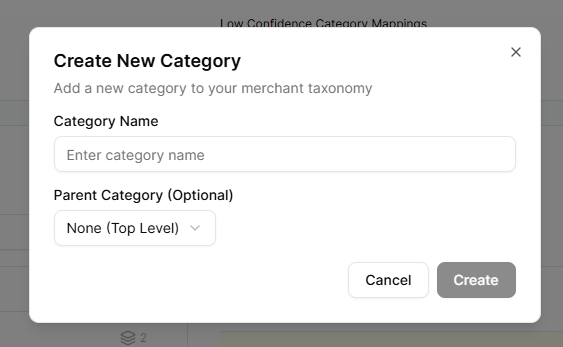
The *Create New Category*\* window is displayed.
4. In the **Category Name** field, enter a name.
5. (Optional) In the **Parent Category** field, select this new category’s parent category.
6. Click **Create**.
The new category is created. Follow the steps above under [Changing a product's category](/product-agent/activate/activating-products/taxonomy-mapping#changing-a-product’s-category) to assign the product to the new category.
### Adding a new category
1. From the **Categories** tab, browse your products.
2. For any mis-categorized product, click on its **Category**.
The category selector menu is displayed.
3. Click **Create new category**.
The *Create New Category*\* window is displayed.
4. In the **Category Name** field, enter a name.
5. (Optional) In the **Parent Category** field, select this new category’s parent category.
6. Click **Create**.
The new category is created. Follow the steps above under [Changing a product's category](/product-agent/activate/activating-products/taxonomy-mapping#changing-a-product’s-category) to assign the product to the new category.
 ### Changing an attribute's mapping
1. From the **Categories** tab, click the **Attributes** tab and browse the attributes.
2. For any mis-mapped attribute, click on its mapping.
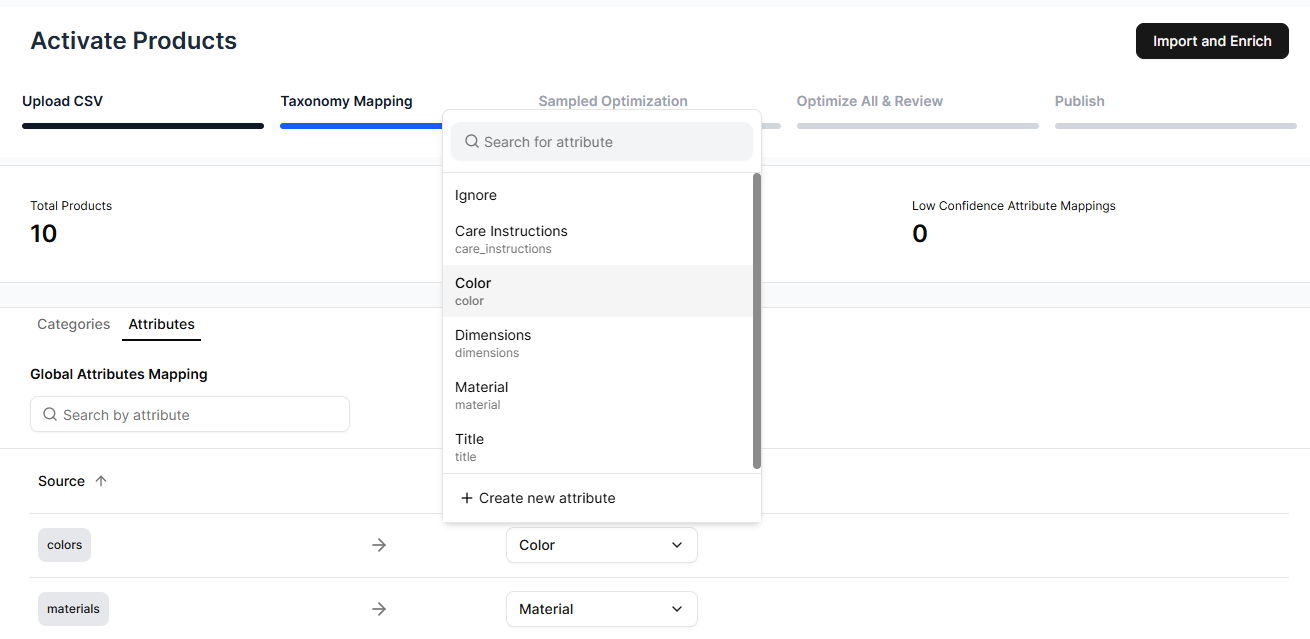
The attribute selector menu is displayed.
3. Select the matching mapping.
The attribute's mapping is updated.
### Changing an attribute's mapping
1. From the **Categories** tab, click the **Attributes** tab and browse the attributes.
2. For any mis-mapped attribute, click on its mapping.
The attribute selector menu is displayed.
3. Select the matching mapping.
The attribute's mapping is updated.
 ### Adding a new attribute type
1. From the **Categories** tab, click the **Attributes** tab and browse the attributes.
2. For any mis-mapped attribute, click on its mapping.
The attribute selector menu is displayed.
3. Click **Create new attribute**.
The *Create New Attribute*\* window is displayed.
4. In the **Attribute Name** field, enter a name.
5. In the **Attribute Key** field, enter an identifier for use in your system, such as "color" or "size."
6. (Optional) In the **Description** field, enter a description.
7. Click **Create**.
The new attribute type is created. Follow the steps above under [Changing an attribute's mapping](/product-agent/activate/activating-products/taxonomy-mapping#changing-an-attribute’s-mapping) to update attribute mapping.
## Related Topics
* [Activate Overview](/product-agent/activate/overview)
* [Product Activation](/product-agent/activate/activating-products/introduction)
* [Experiments](/product-agent/activate/activating-products/experiments)
* [Importing Products](/product-agent/activate/activating-products/importing-products)
* [Enriching Products](/product-agent/activate/enriching-products)
* [Sampled Enrichment](/product-agent/activate/sampled-enrichment)
* [Enrich All & Review](/product-agent/activate/enrich-all-review)
* [Publishing Products](/product-agent/activate/publishing-products)
### Adding a new attribute type
1. From the **Categories** tab, click the **Attributes** tab and browse the attributes.
2. For any mis-mapped attribute, click on its mapping.
The attribute selector menu is displayed.
3. Click **Create new attribute**.
The *Create New Attribute*\* window is displayed.
4. In the **Attribute Name** field, enter a name.
5. In the **Attribute Key** field, enter an identifier for use in your system, such as "color" or "size."
6. (Optional) In the **Description** field, enter a description.
7. Click **Create**.
The new attribute type is created. Follow the steps above under [Changing an attribute's mapping](/product-agent/activate/activating-products/taxonomy-mapping#changing-an-attribute’s-mapping) to update attribute mapping.
## Related Topics
* [Activate Overview](/product-agent/activate/overview)
* [Product Activation](/product-agent/activate/activating-products/introduction)
* [Experiments](/product-agent/activate/activating-products/experiments)
* [Importing Products](/product-agent/activate/activating-products/importing-products)
* [Enriching Products](/product-agent/activate/enriching-products)
* [Sampled Enrichment](/product-agent/activate/sampled-enrichment)
* [Enrich All & Review](/product-agent/activate/enrich-all-review)
* [Publishing Products](/product-agent/activate/publishing-products)