> ## Documentation Index
> Fetch the complete documentation index at: https://developer.fabric.inc/llms.txt
> Use this file to discover all available pages before exploring further.
# Users
> Create and manage users in Product Agent by assigning roles and organizing users by company.
Product Agent is currently in beta, and we're [seeking partners](https://fabric.inc/contact-us) to help shape its future.
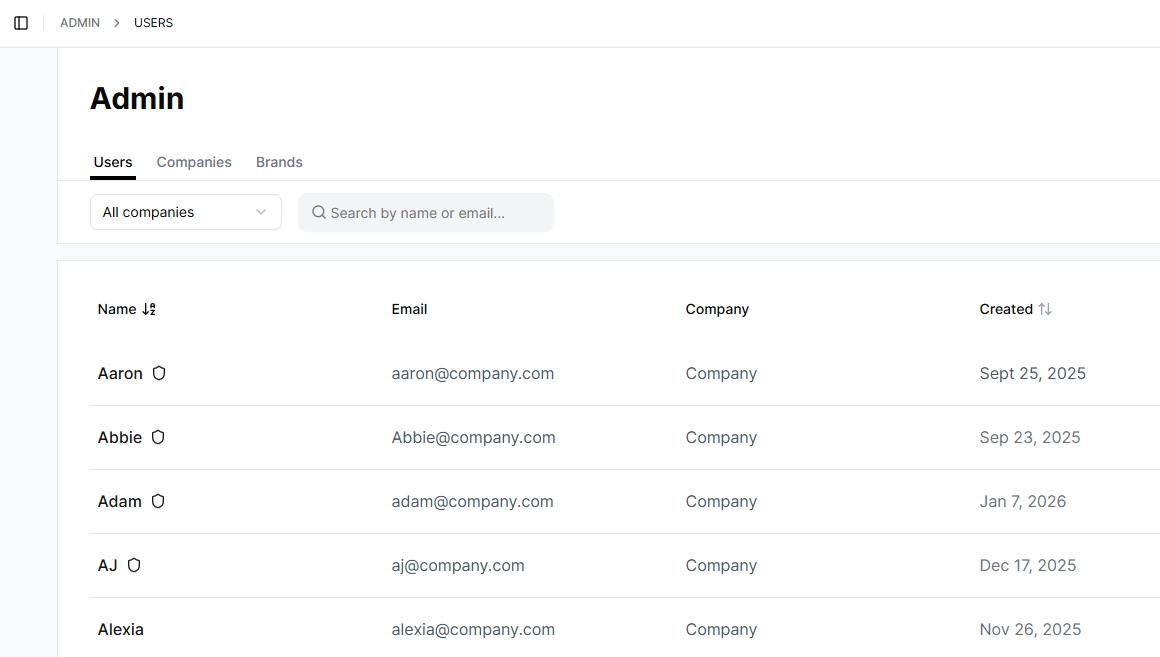
The **Users** tab is the default tab under Admin. It allows you to create and manage users in Product Agent. This topic follows the procedures to create and manage users.
The Users tab displays a table with the following information:
| Column | Description |
| :------ | :------------------------------------- |
| Name | User’s name. |
| Email | User’s email address. |
| Company | The company the user works for. |
| Created | The date the user profile was created. |
 ## Prerequisites
You must have **Admin** credentials to create or manage users.
## Procedures
### Creating a new user
To create a new users, take the following steps:
1. In the left navigation of Product Agent, click **Admin**.
The **Users** tab is displayed.
2. Click **Create User**.
The **Create User** window is displayed.
## Prerequisites
You must have **Admin** credentials to create or manage users.
## Procedures
### Creating a new user
To create a new users, take the following steps:
1. In the left navigation of Product Agent, click **Admin**.
The **Users** tab is displayed.
2. Click **Create User**.
The **Create User** window is displayed.
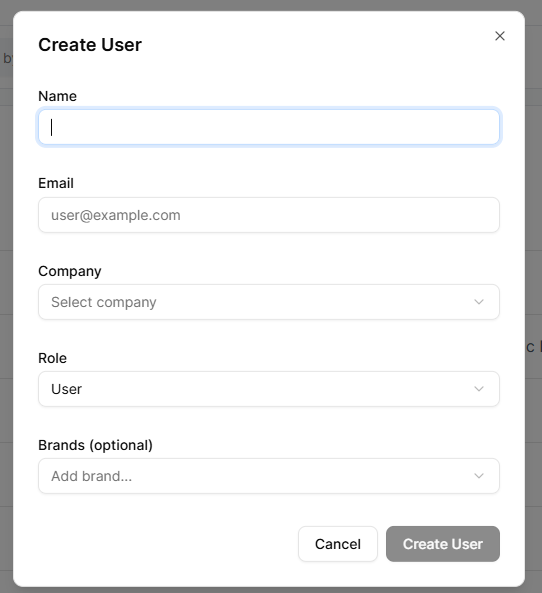 3. In the **Name** field, enter a name.
4. In the **Email** field, enter the new user's email address.
5. In the **Company** field, click the company the user works for.
6. In the **Role** field, chose the user's role from the following privilege levels:
* **User** to access and use Product Agent.
* **Admin** to manage users and administrative settings, as well as all privileges the User role has.
7. In the **Brands (optional)** field, assign the user to the specific brands they work on.
8. Click **Create User**.
The user is created.
### Editing a user
To edit an existing user, take the following steps:
1. In the left navigation of Product Agent, click **Admin**.
The **Users** tab is displayed.
2. In the list of users, click on a user’s name.
The **Edit User** window is displayed.
3. Edit the user’s information as required.
4. Click **Save Changes**.
The user is updated.
## Related Topics
* [Overview](/product-agent/admin-settings/admin/overview)
* [Companies](/product-agent/admin-settings/admin/companies)
* [Brands](/product-agent/admin-settings/admin/brands)
3. In the **Name** field, enter a name.
4. In the **Email** field, enter the new user's email address.
5. In the **Company** field, click the company the user works for.
6. In the **Role** field, chose the user's role from the following privilege levels:
* **User** to access and use Product Agent.
* **Admin** to manage users and administrative settings, as well as all privileges the User role has.
7. In the **Brands (optional)** field, assign the user to the specific brands they work on.
8. Click **Create User**.
The user is created.
### Editing a user
To edit an existing user, take the following steps:
1. In the left navigation of Product Agent, click **Admin**.
The **Users** tab is displayed.
2. In the list of users, click on a user’s name.
The **Edit User** window is displayed.
3. Edit the user’s information as required.
4. Click **Save Changes**.
The user is updated.
## Related Topics
* [Overview](/product-agent/admin-settings/admin/overview)
* [Companies](/product-agent/admin-settings/admin/companies)
* [Brands](/product-agent/admin-settings/admin/brands)