> ## Documentation Index
> Fetch the complete documentation index at: https://developer.fabric.inc/llms.txt
> Use this file to discover all available pages before exploring further.
# Creating Attributes
> Define product attributes and data types for consistent enrichment.
Product Agent is currently in beta, and we're [seeking partners](https://fabric.inc/contact-us) to help shape its future.
Defining **Attributes** helps Product Agent understand what types of information exist in your catalog and how that information should be interpreted during enrichment. A well-defined set of attributes improves consistency across your product data and gives Product Agent better context when generating enhanced content.
This topic describes how to import attributes from a CSV file or create them manually.
 ### CSV file guidelines
If you import attributes using a CSV file, the file should define the structure of your product attributes in a clear, consistent format.
Each row represents a single attribute, including its display name, a machine-readable key, and the type of data it stores. This allows Product Agent to understand how product information should be structured and interpreted during enrichment.
At a minimum, attribute definitions typically include:
* **attribute\_name**: the display name shown in Product Agent
* **attribute\_key**: a standardized, machine-readable identifier
* **description**: a brief explanation of the attribute
* **data\_type**: the type of value the attribute stores, such as text or number
Providing a consistent set of attributes ensures that Product Agent can apply enrichment reliably across your catalog.
The following example shows how attribute data can be structured in a CSV file:
| **attribute\_name** | **attribute\_key** | **description** | **data\_type** |
| :------------------ | :----------------- | :------------------ | :------------- |
| Designer | designer | Product designer | STRING |
| Product Name | product\_name | Name of the product | STRING |
| Size | size | Product size | STRING |
| Product Code | product\_code | Internal SKU/code | NUMBER |
| Details | details | Product details | STRING |
## Procedures
### Importing attributes
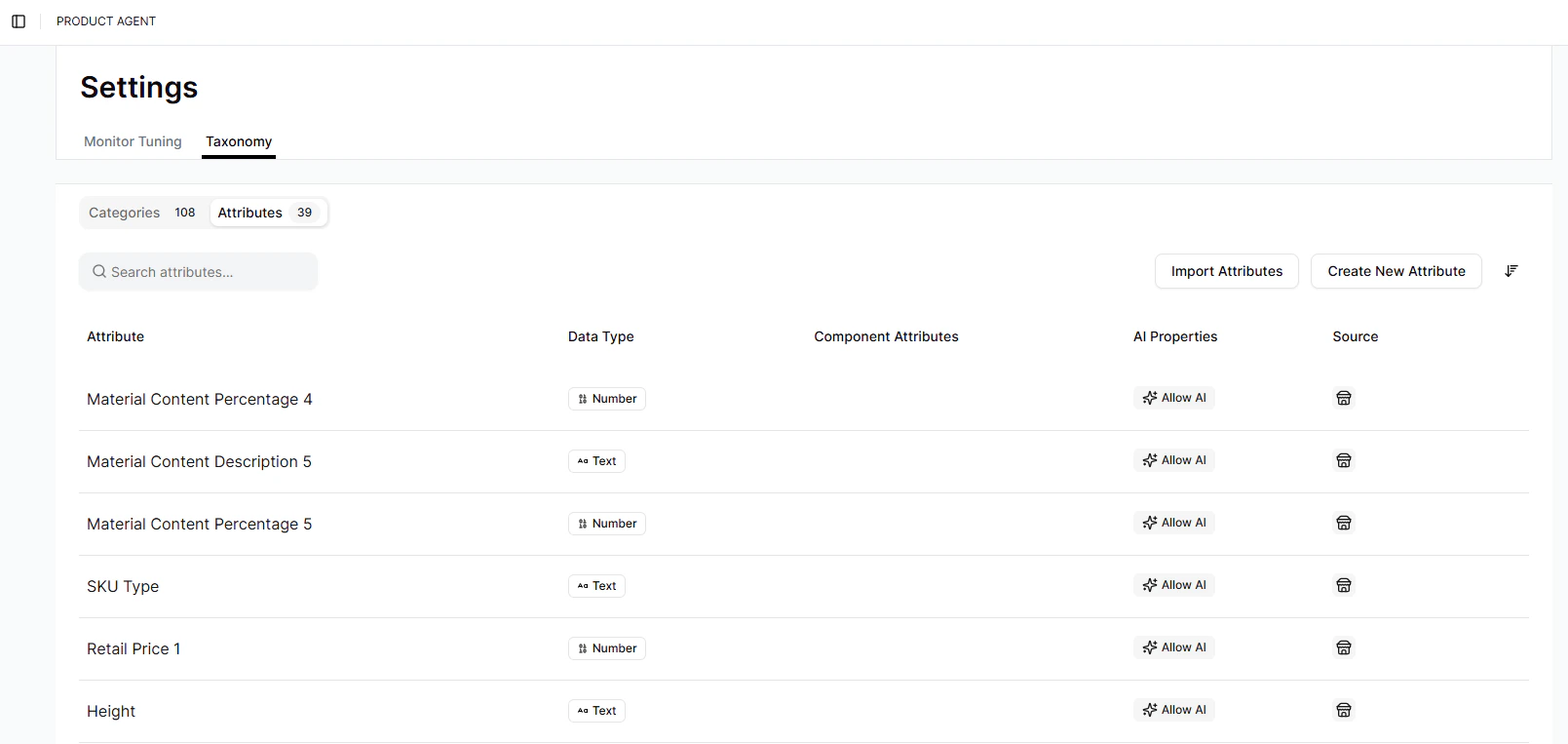
1. In the left menu, click **Settings**.
The Product Agent **Settings** menu is displayed.
2. Click **Taxonomy**.
The **Taxonomy** tab is displayed.
3. Click **Attributes**.
The **Attributes** menu is displayed.
4. To import attributes from a CSV file, click **Import Attributes**.
The **Import Attributes** window is displayed.
5. To import a CSV file, do one of the following:
* Drag and drop a file into the upload box.
* Click **Choose File** to select a file from your computer.
### CSV file guidelines
If you import attributes using a CSV file, the file should define the structure of your product attributes in a clear, consistent format.
Each row represents a single attribute, including its display name, a machine-readable key, and the type of data it stores. This allows Product Agent to understand how product information should be structured and interpreted during enrichment.
At a minimum, attribute definitions typically include:
* **attribute\_name**: the display name shown in Product Agent
* **attribute\_key**: a standardized, machine-readable identifier
* **description**: a brief explanation of the attribute
* **data\_type**: the type of value the attribute stores, such as text or number
Providing a consistent set of attributes ensures that Product Agent can apply enrichment reliably across your catalog.
The following example shows how attribute data can be structured in a CSV file:
| **attribute\_name** | **attribute\_key** | **description** | **data\_type** |
| :------------------ | :----------------- | :------------------ | :------------- |
| Designer | designer | Product designer | STRING |
| Product Name | product\_name | Name of the product | STRING |
| Size | size | Product size | STRING |
| Product Code | product\_code | Internal SKU/code | NUMBER |
| Details | details | Product details | STRING |
## Procedures
### Importing attributes
1. In the left menu, click **Settings**.
The Product Agent **Settings** menu is displayed.
2. Click **Taxonomy**.
The **Taxonomy** tab is displayed.
3. Click **Attributes**.
The **Attributes** menu is displayed.
4. To import attributes from a CSV file, click **Import Attributes**.
The **Import Attributes** window is displayed.
5. To import a CSV file, do one of the following:
* Drag and drop a file into the upload box.
* Click **Choose File** to select a file from your computer.
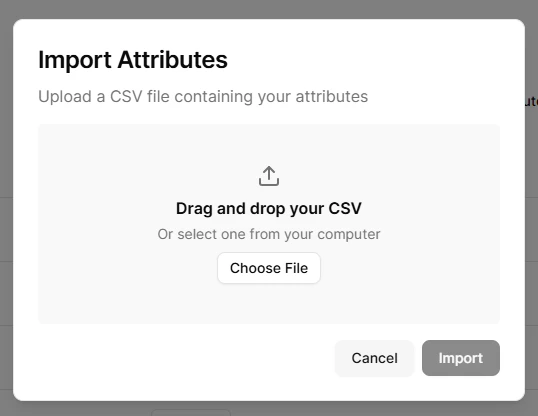 6. Click **Import**.
The imported attributes are added to your taxonomy and become part of the data structure Product Agent uses during enrichment.
### Manual attribute setup
1. In the left menu, click **Settings**.
The Product Agent **Settings** menu is displayed.
2. Click **Taxonomy**.
The **Taxonomy** tab is displayed.
3. Click **Attributes**.
The **Attributes** menu is displayed.
4. To create a new attribute, click **Create New Attribute**.
The **Create New Attribute** window is displayed.
5. In the **Attribute name** field, enter the name of the attribute.
6. (Optional) In the **Description** field, enter a description for the attribute.
7. In the **Data Type** field, select the type of value the attribute will store.
For more information on data types, see the [Taxonomy Overview](/product-agent/admin-settings/settings/taxonomy-overview).
8. (Optional) To allow Product Agent to enhance or generate values for this attribute, click **Allow AI Content**.
9. (Optional) To provide additional guidance for AI-generated values, click **Include AI Content Guidance**.
6. Click **Import**.
The imported attributes are added to your taxonomy and become part of the data structure Product Agent uses during enrichment.
### Manual attribute setup
1. In the left menu, click **Settings**.
The Product Agent **Settings** menu is displayed.
2. Click **Taxonomy**.
The **Taxonomy** tab is displayed.
3. Click **Attributes**.
The **Attributes** menu is displayed.
4. To create a new attribute, click **Create New Attribute**.
The **Create New Attribute** window is displayed.
5. In the **Attribute name** field, enter the name of the attribute.
6. (Optional) In the **Description** field, enter a description for the attribute.
7. In the **Data Type** field, select the type of value the attribute will store.
For more information on data types, see the [Taxonomy Overview](/product-agent/admin-settings/settings/taxonomy-overview).
8. (Optional) To allow Product Agent to enhance or generate values for this attribute, click **Allow AI Content**.
9. (Optional) To provide additional guidance for AI-generated values, click **Include AI Content Guidance**.
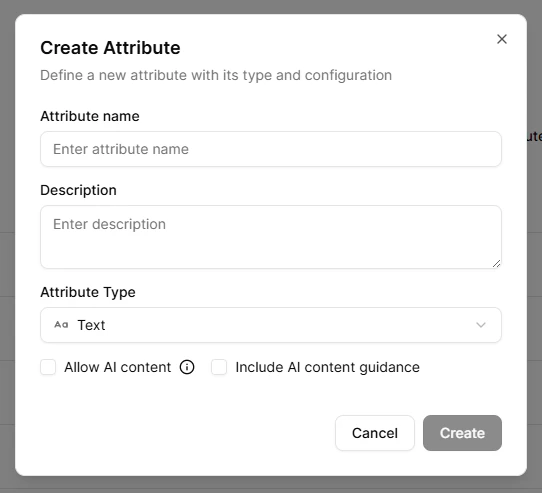 10. Click **Create**.
The new attribute is added to your taxonomy and becomes available for Product Agent to use when enriching product data.
## Related Topics
* [Taxonomy Overview](/product-agent/admin-settings/settings/taxonomy-overview)
* [Creating Categories](/product-agent/admin-settings/settings/creating-categories)
* [Importing CSV Files Using API Endpoints](/product-agent/developer-guides/postman-import-csv-guide)
10. Click **Create**.
The new attribute is added to your taxonomy and becomes available for Product Agent to use when enriching product data.
## Related Topics
* [Taxonomy Overview](/product-agent/admin-settings/settings/taxonomy-overview)
* [Creating Categories](/product-agent/admin-settings/settings/creating-categories)
* [Importing CSV Files Using API Endpoints](/product-agent/developer-guides/postman-import-csv-guide)