> ## Documentation Index
> Fetch the complete documentation index at: https://developer.fabric.inc/llms.txt
> Use this file to discover all available pages before exploring further.
# Creating Categories
> Create category hierarchies to organize your catalog and improve product enrichment.
Product Agent is currently in beta, and we're [seeking partners](https://fabric.inc/contact-us) to help shape its future.
**Categories** define the structure of your catalog in Product Agent.
Creating a clear category hierarchy helps Product Agent understand how your products are grouped during enrichment. A well-structured category tree improves consistency across your catalog and gives Product Agent better context when generating enhanced product content in Activate.
This topic describes how to import categories from a CSV file or create them manually.
 ### CSV file guidelines
If you import categories using a CSV file, the file should represent your catalog hierarchy in a clear, structured format.
Each row defines a category and its position within your hierarchy using a breadcrumb path, such as `Womens > Apparel > Dresses`. This allows Product Agent to reconstruct your category tree and understand how products are grouped during enrichment.
You can optionally include category identifiers, such as `category_id` or `parent_category_id`, if your catalog is managed in an external system. If these values are not provided, Product Agent automatically generates any necessary identifiers when building your taxonomy.
The following example shows how category data can be structured in a CSV file:
| **\_id** | **category\_name** | **breadcrumb** | **parent\_category\_id** |
| :------- | :----------------- | :------------------------- | :----------------------- |
| | Womens | Womens | |
| | Apparel | Womens > Apparel | |
| | Dresses | Womens > Apparel > Dresses | |
| | Blouses | Womens > Apparel > Blouses | |
| | Skirts | Womens > Apparel > Skirts | |
During enrichment, Product Agent uses your category structure to determine where products belong. Continuing with the example from the table above, if you uploaded a category of t-shirts, Product Agent would assign them to the most relevant existing category, in this case, **Womens > Apparel**.
However, Product Agent does not create new categories automatically. If you want products to be classified under a more specific category such as **Womens > Apparel > T-Shirts**, you must define that category in your taxonomy before enriching your catalog.
## Procedures
### Importing Categories
1. In the left menu, click **Settings**.
The Product Agent **Settings** menu is displayed.
2. Click **Taxonomy**.
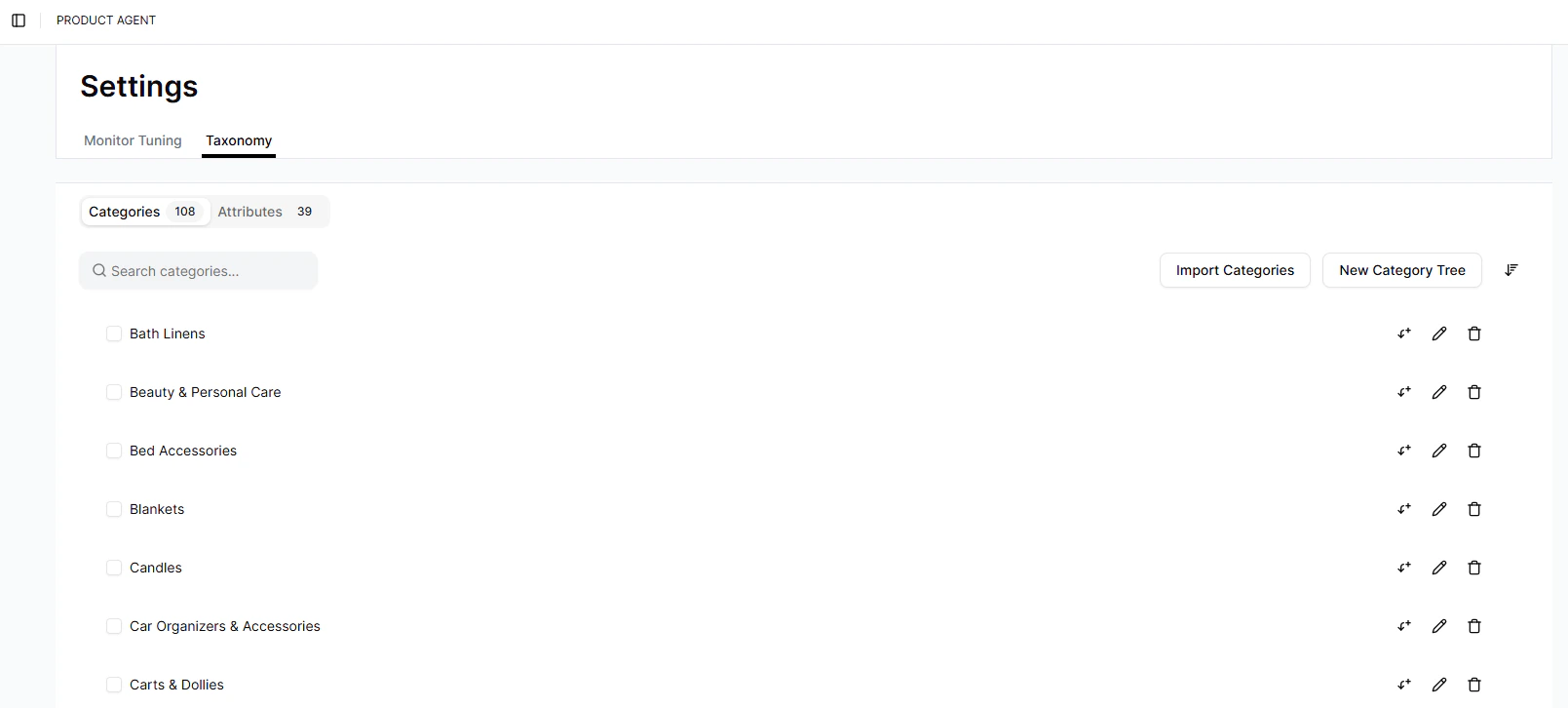
The **Taxonomy** tab is displayed.
3. To import your category tree from a CSV file, click **Import Categories**.
The **Import Categories** window is displayed.
### CSV file guidelines
If you import categories using a CSV file, the file should represent your catalog hierarchy in a clear, structured format.
Each row defines a category and its position within your hierarchy using a breadcrumb path, such as `Womens > Apparel > Dresses`. This allows Product Agent to reconstruct your category tree and understand how products are grouped during enrichment.
You can optionally include category identifiers, such as `category_id` or `parent_category_id`, if your catalog is managed in an external system. If these values are not provided, Product Agent automatically generates any necessary identifiers when building your taxonomy.
The following example shows how category data can be structured in a CSV file:
| **\_id** | **category\_name** | **breadcrumb** | **parent\_category\_id** |
| :------- | :----------------- | :------------------------- | :----------------------- |
| | Womens | Womens | |
| | Apparel | Womens > Apparel | |
| | Dresses | Womens > Apparel > Dresses | |
| | Blouses | Womens > Apparel > Blouses | |
| | Skirts | Womens > Apparel > Skirts | |
During enrichment, Product Agent uses your category structure to determine where products belong. Continuing with the example from the table above, if you uploaded a category of t-shirts, Product Agent would assign them to the most relevant existing category, in this case, **Womens > Apparel**.
However, Product Agent does not create new categories automatically. If you want products to be classified under a more specific category such as **Womens > Apparel > T-Shirts**, you must define that category in your taxonomy before enriching your catalog.
## Procedures
### Importing Categories
1. In the left menu, click **Settings**.
The Product Agent **Settings** menu is displayed.
2. Click **Taxonomy**.
The **Taxonomy** tab is displayed.
3. To import your category tree from a CSV file, click **Import Categories**.
The **Import Categories** window is displayed.
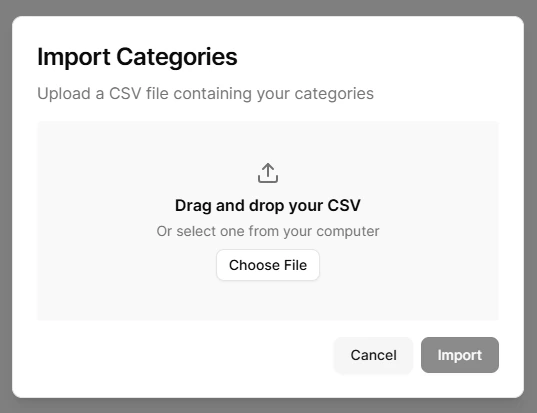 4. Do one of the following:
* Drag and drop a file into the upload box.
* Click **Choose File** to select a file from your computer.
5. Click **Import**.
The new category structure is imported and becomes part of the catalog framework Product Agent uses during enrichment.
### Manual category setup
1. In the left menu, click **Settings**.
The Product Agent **Settings** menu is displayed.
2. Click **Taxonomy**.
The **Taxonomy** tab is displayed.
3. To create a category tree manually, do the following:
* Click **New Category Tree**.
The **New Category Tree** window is displayed.
* In the **Category name** field, enter the name for the category.
* (Optional) To add a child or subcategory, click the icon to the right of the **Category name** field.
The **Level 2** field is displayed.
* (Optional) Repeat the above step as required to accurately define your catalog structure.
4. Do one of the following:
* Drag and drop a file into the upload box.
* Click **Choose File** to select a file from your computer.
5. Click **Import**.
The new category structure is imported and becomes part of the catalog framework Product Agent uses during enrichment.
### Manual category setup
1. In the left menu, click **Settings**.
The Product Agent **Settings** menu is displayed.
2. Click **Taxonomy**.
The **Taxonomy** tab is displayed.
3. To create a category tree manually, do the following:
* Click **New Category Tree**.
The **New Category Tree** window is displayed.
* In the **Category name** field, enter the name for the category.
* (Optional) To add a child or subcategory, click the icon to the right of the **Category name** field.
The **Level 2** field is displayed.
* (Optional) Repeat the above step as required to accurately define your catalog structure.
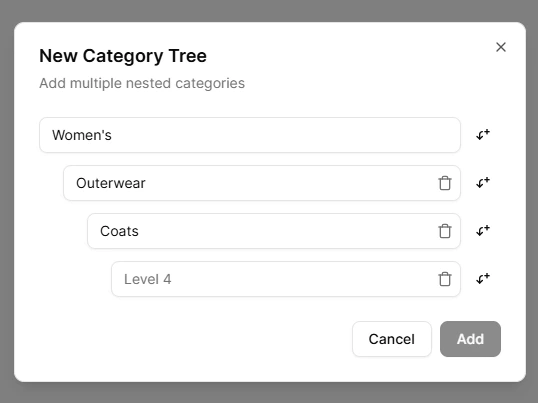 4. Click **Add**.
The new category structure is added and becomes part of the catalog framework Product Agent uses during enrichment.
## Related Topics
* [Taxonomy Overview](/product-agent/admin-settings/settings/taxonomy-overview)
* [Creating Attributes](/product-agent/admin-settings/settings/creating-attributes)
* [Importing CSV Files Using API Endpoints](/product-agent/developer-guides/postman-import-csv-guide)
4. Click **Add**.
The new category structure is added and becomes part of the catalog framework Product Agent uses during enrichment.
## Related Topics
* [Taxonomy Overview](/product-agent/admin-settings/settings/taxonomy-overview)
* [Creating Attributes](/product-agent/admin-settings/settings/creating-attributes)
* [Importing CSV Files Using API Endpoints](/product-agent/developer-guides/postman-import-csv-guide)