
Product Agent is currently in beta, and we’re seeking partners to help shape its future.
Prerequisites
You must have Admin credentials to create or manage users.Procedures
Creating a new user
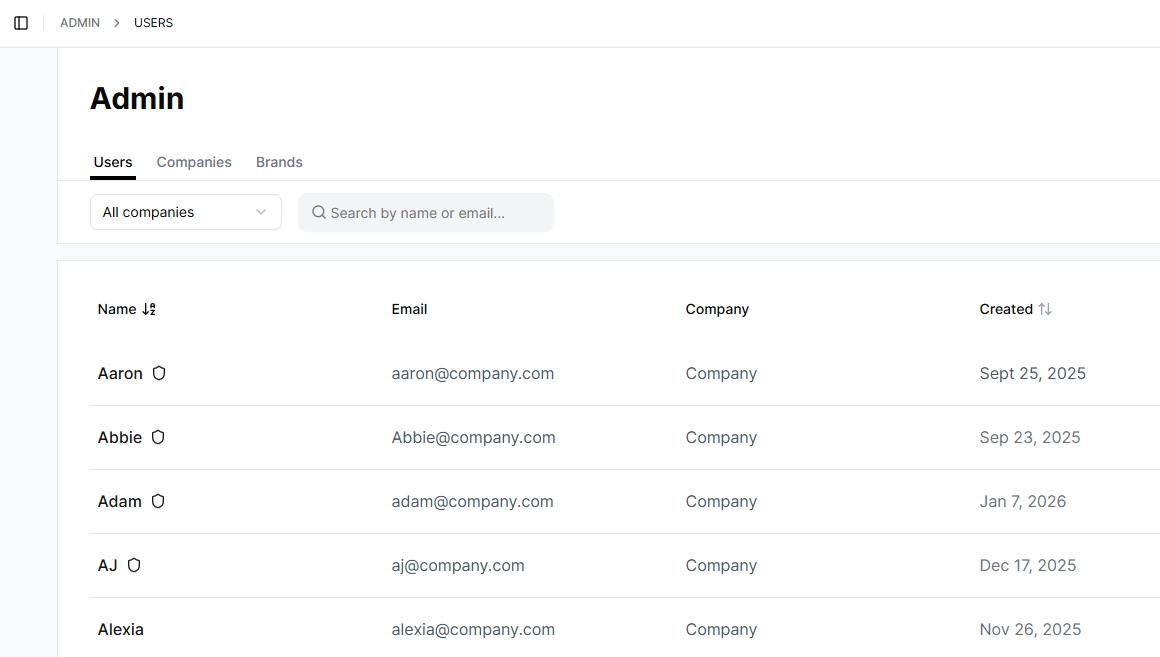
To create a new users, take the following steps:- In the left navigation of Product Agent, click Admin. The Users tab is displayed.
-
Click Create User.
The Create User window is displayed.
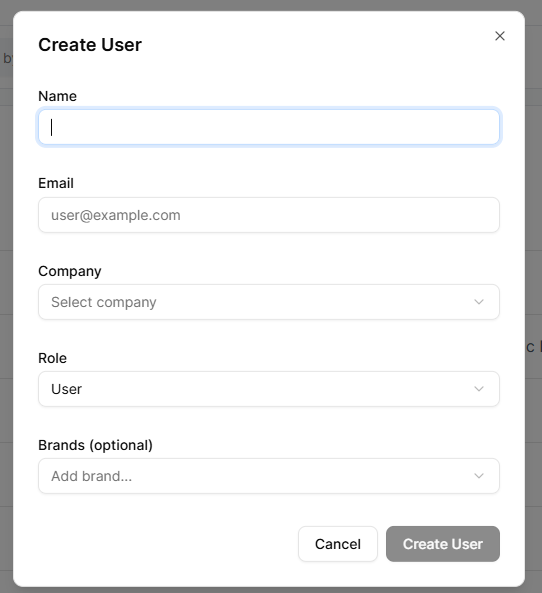
- In the Name field, enter a name.
- In the Email field, enter the new user’s email address.
- In the Company field, click the company the user works for.
-
In the Role field, chose the user’s role from the following privilege levels:
- User to access and use Product Agent.
- Admin to manage users and administrative settings, as well as all privileges the User role has.
- In the Brands (optional) field, assign the user to the specific brands they work on.
- Click Create User.
Editing a user
To edit an existing user, take the following steps:- In the left navigation of Product Agent, click Admin. The Users tab is displayed.
- In the list of users, click on a user’s name. The Edit User window is displayed.
- Edit the user’s information as required.
- Click Save Changes.