
Product Agent is currently in beta, and we’re seeking partners to help shape its future.
CSV file guidelines
If you import categories using a CSV file, the file should represent your catalog hierarchy in a clear, structured format. Each row defines a category and its position within your hierarchy using a breadcrumb path, such asWomens > Apparel > Dresses. This allows Product Agent to reconstruct your category tree and understand how products are grouped during enrichment.
You can optionally include category identifiers, such as category_id or parent_category_id, if your catalog is managed in an external system. If these values are not provided, Product Agent automatically generates any necessary identifiers when building your taxonomy.
The following example shows how category data can be structured in a CSV file:
During enrichment, Product Agent uses your category structure to determine where products belong. Continuing with the example from the table above, if you uploaded a category of t-shirts, Product Agent would assign them to the most relevant existing category, in this case, Womens > Apparel.
However, Product Agent does not create new categories automatically. If you want products to be classified under a more specific category such as Womens > Apparel > T-Shirts, you must define that category in your taxonomy before enriching your catalog.
Procedures
Importing Categories
- In the left menu, click Settings. The Product Agent Settings menu is displayed.
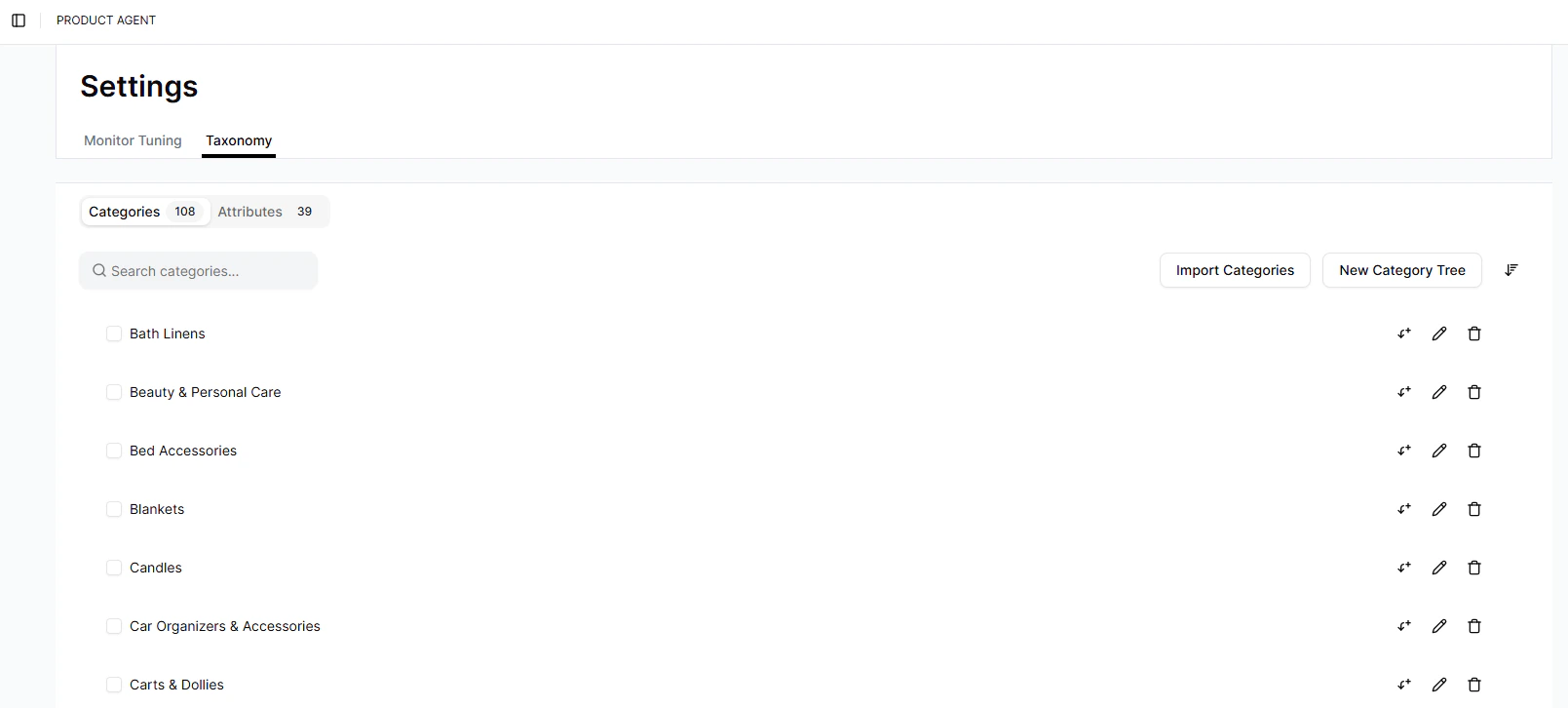
- Click Taxonomy. The Taxonomy tab is displayed.
-
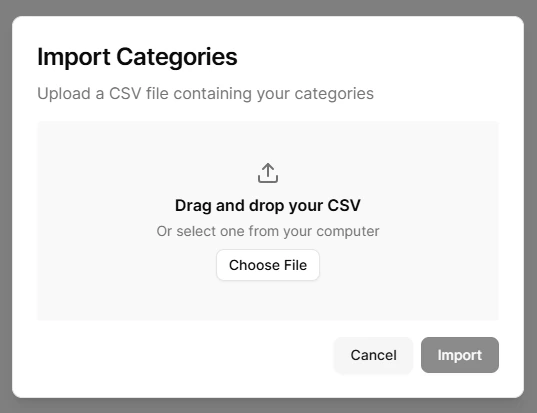
To import your category tree from a CSV file, click Import Categories.
The Import Categories window is displayed.
-
Do one of the following:
- Drag and drop a file into the upload box.
- Click Choose File to select a file from your computer.
- Click Import.
Manual category setup
- In the left menu, click Settings. The Product Agent Settings menu is displayed.
- Click Taxonomy. The Taxonomy tab is displayed.
-
To create a category tree manually, do the following:
- Click New Category Tree. The New Category Tree window is displayed.
- In the Category name field, enter the name for the category.
-
(Optional) To add a child or subcategory, click the icon to the right of the Category name field.
The Level 2 field is displayed.
- (Optional) Repeat the above step as required to accurately define your catalog structure.
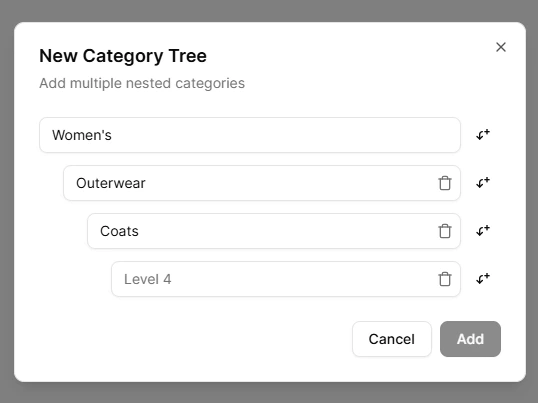
- Click Add.